Part 3: Sprite Sheets
Table of contents
What is a Sprite Sheet?
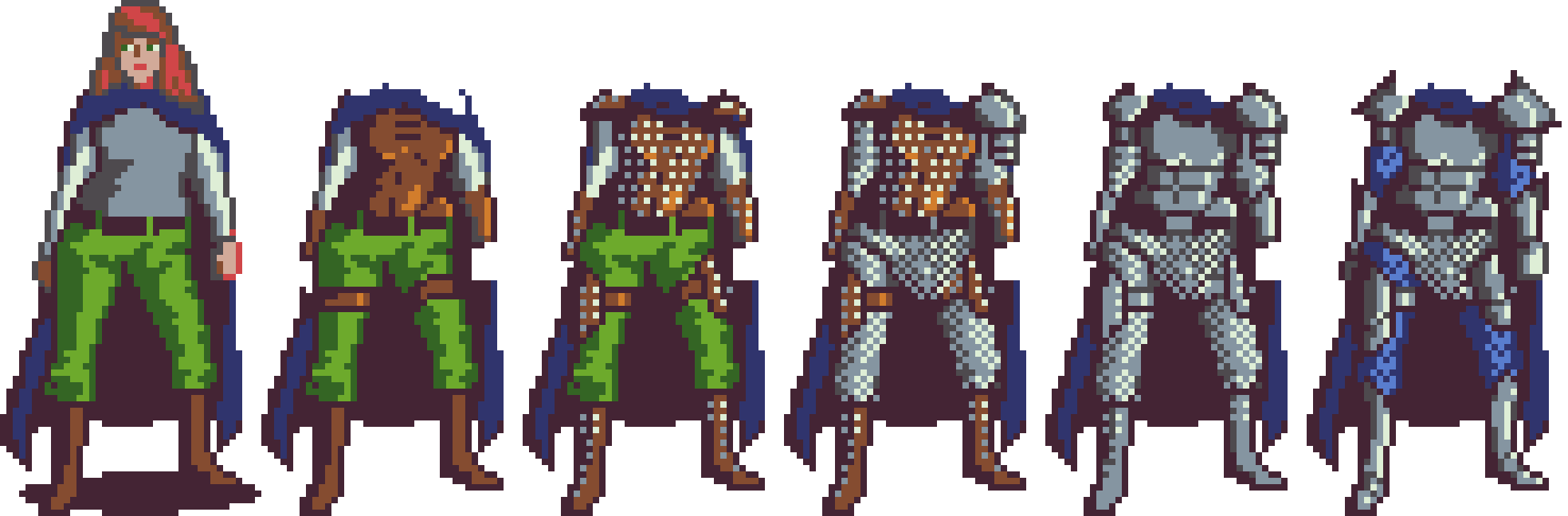
A sprite sheet is a big picture made up of several smaller pictures. Imagine you have a character in a video game, and you want that character to do different things like walk, jump, and dance. Instead of having separate pictures for each action, you put all of these pictures together on one big sheet. When you want the character to do something, like walk, the game looks at that big sheet and shows just the part with the walking picture. This makes it easier for the game to show different actions quickly and smoothly without using too much computer memory.
Slicing a Sprite Sheet
The heroine.png file is a sprite sheet that contains the heroine we will use as well as several different armor options.
Add the Sprite Sheet to the Scene
If you try to add the image in its current form, it will add the entire sprite sheet to your scene.
- Drag the
heroinesprite asset into your scene.
This creates a Game Object in the Hierarchy of the scene. We don’t actually want this Game Object
- Delete the created game object in the hierarchy by right clicking on it and selecting
Delete
Sprite Mode
In a 2D Unity project the default setting is to treat images as a single sprite. To change this, you need to set the Sprite Mode.
- Select the
heroineasset in the project window - In the
Inspectorchange theSpriteModetoMultiple - Click
Apply
Slicing with the Sprite Editor
Next, you need to define each sprite. This can be done using the Sprite Editor. There are several slicing options to choose from. The provided image has been set up to be sliced into 6 even columns.
- Select the
heroineasset in the project window - In the
Inspectorclick theSprite Editorbutton- This will open the
Sprite Editorwindow
- This will open the
- Select the
Slicedrop down menu - Change the
TypetoGrid By Cell Count - Set the number of columns to 6
- Click
Apply
Not so Pro Tip: Taking time to create easily sliceable assets will improve your workflow. If you’re working on a team, be sure to communicate with your artists on how you plan to slice your sprites.
Add the Heroine Sprite to the Scene
Now that you have several sliced sprites, you can select them individually for use.
- Select the
heroineasset in the project window - Click the expand arrow to see all of the sprites
- Select the first sprite and drag it into your scene
Challenge
With the knowledge you’ve gained, can you slice the weapons sprite sheet?
When you’re done, you should be able to select 7 individual weapons from the sprite sheet.
What’s Next?
In Part 4: Scene Hierarchy you will learn how to add multiple GameObjects to your scene as well as how to group them to create a hierarchy of related GameObjects.
Join the Discussion
Before commenting, you will need to authorize giscus. Alternatively, you can add a comment directly on the GitHub Discussion Board.