Part 7: On Click Event
Table of contents
The On Click Event
Unity’s UI system uses an event system to allow your programs to react to user input. Each button component comes with an On Click event that can be accessed in the inspector.
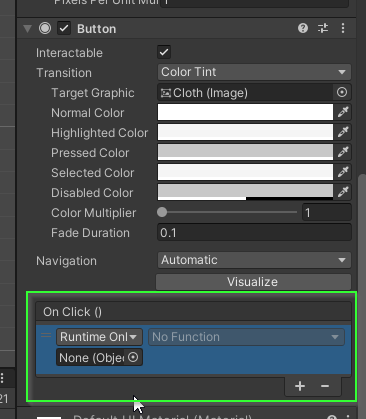
- Click on a button in your
Hierarchy - Find the
Buttoncomponent in theInspector(you may have to scroll down) - Find the
On Clickevent - Click the
+icon to add an Event Listener to the event

If all went well, you have a new Event Listener in your On Click event.
What is an Event Listener?
In Unity, an event listener is a function or method that “listens” for a specific event to occur and then executes a block of code in response to that event. Events can be emitted by various types of game objects, components, or scripts, and the event listener acts as a subscriber to these events. For example, you might have a button in your game that, when clicked, fires an event to which other parts of your code are listening. When the button is clicked, the event listener catches this event and executes predefined actions, such as loading a new scene or updating a game score. This decouples the components of your application, making your code modular and easier to manage.
Changing the Armor Sprite when Clicked
By default, the new Event Listener does nothing when the button is clicked. To make it do something interesting, you must attach it to a GameObject in your scene. In this case, you want to modify the sprite on the Armor GameObject.
- In the
Hierarchyright click on theClotharmor button. - Select
Propertiesthis will open a window that is inspecting thatGameObject
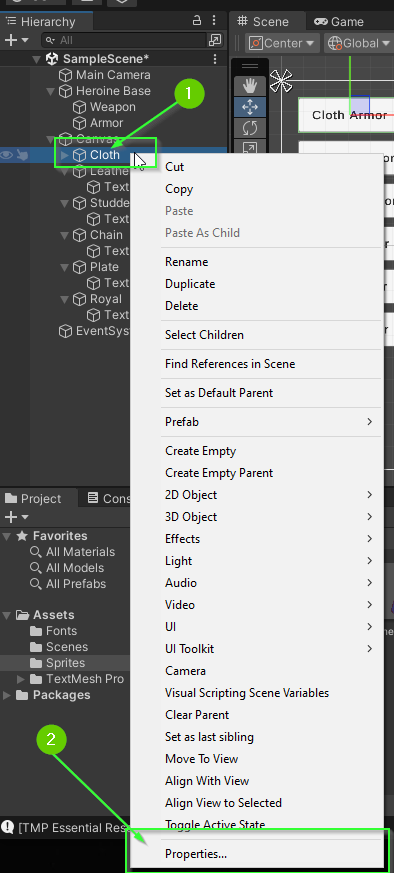
Note: This is useful when you have to inspect more than one element at the same time. It works on most GameObjects and Assets in a Unity project.
- Select the
ArmorGameObjectfrom theHierarchy - Drag the
ArmorGameObjectinto theGameObjectposition on the Event Listener you made previously.
With the Armor object registered on the Event Listener you can now specify how to modify that GameObject when the button is clicked.
- Click the
No Functiondrop down - Select the
SpriteRendererfrom the menu - Select the
Sprite spritefrom the menu
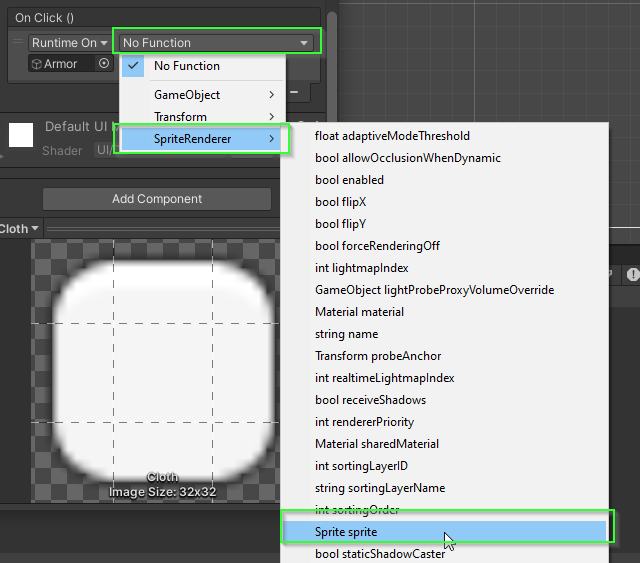
Lastly, you must specify the new value for the Sprite.
- Find the heroine sprite sheet in your assets
- Expand the sprite sheet
- Click an drag the cloth armor sprite into the empty sprite property in your Event Listener
Testing the Button
Test the game:
- Click the
Playicon in the top of the Unity Editor. - Wait a moment for Unity Play Mode to launch
- Click the
Cloth Armorbutton
Note: If all went well, your characters armor will change when you click the button.
- Click the
Playbutton again to exit Play Mode
Warning: Do not forget to exit Play Mode. If you make edits in play mode, the changes will not be saved.
Challenge: Finish Armor Menu
Update each of your buttons to change the Armor sprite to the appropriate armor selection.
When you’re done, your program should function similar to the one in the preview below:
What’s Next?
In Part 8: Vertical Layout Group, you will learn how to utilize Unity’s Layout tools to help you manage the complexity of your user interfaces.
Join the Discussion
Before commenting, you will need to authorize giscus. Alternatively, you can add a comment directly on the GitHub Discussion Board.